📌 Version 1.0 This is the first generation of our components. Some may have minor alignment differences or use widgets that aren't perfectly matched to the content type. Even so, they provide a strong structural foundation and are very useful for quickly building any type of website. We're continuously improving them; future versions will be even more polished.
Why does this look plain/unstyled? Snapelement components are intentionally unstyled. They contain no hardcoded colors, fonts, or spacing. When you paste them into Elementor, they automatically adopt your site's Global Styles (colors, fonts, buttons). The preview may look off or basic here, but once imported, every element matches your brand.
Layout
Timeline Sections layout variant 5
About This Component
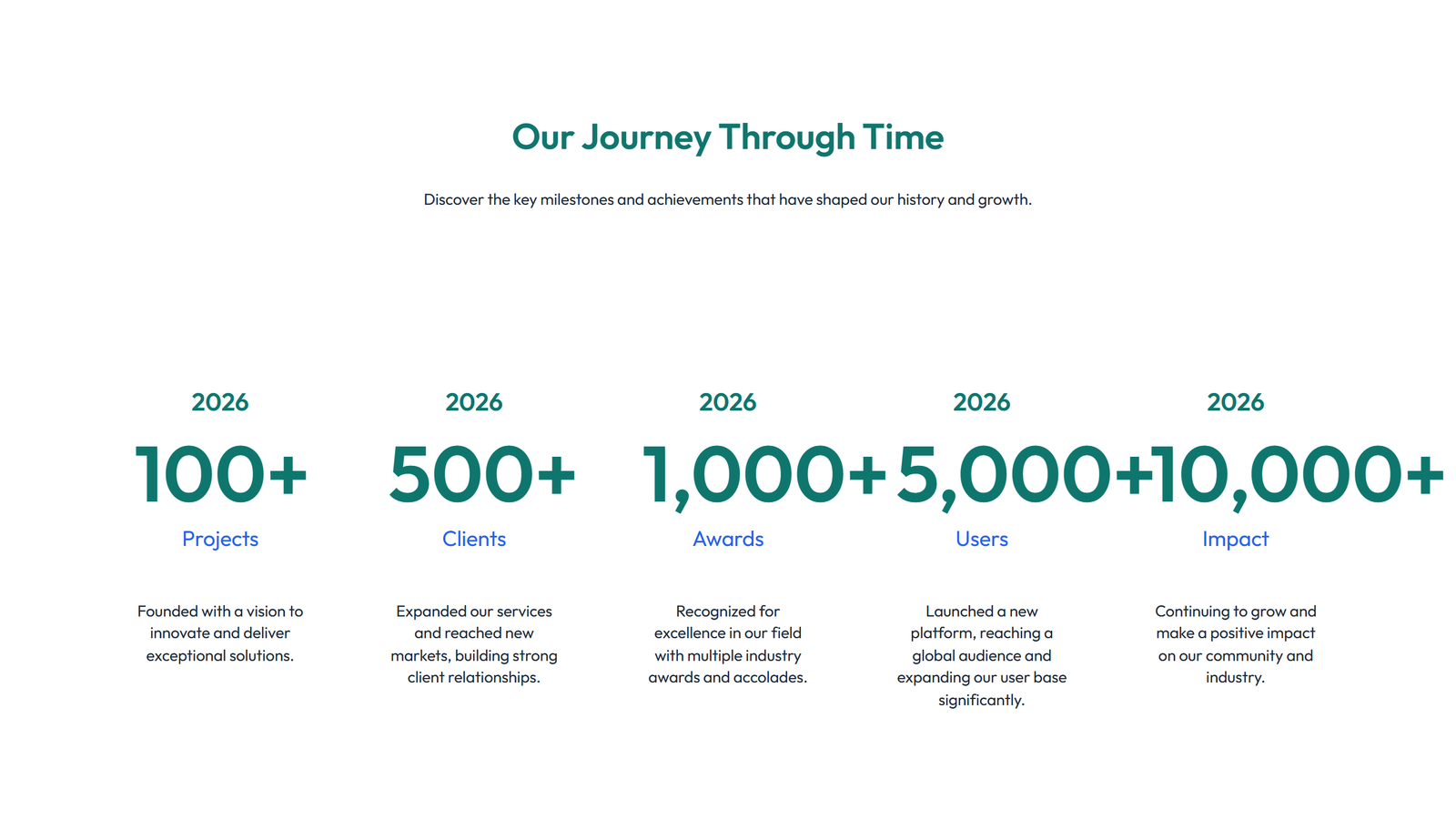
Timeline sections organize sequential information into clear, scrollable visual stories. This timeline section component from Snapelement delivers a professionally designed layout ready for any WordPress site using Elementor. The design features a well-organized layout with horizontal timeline: 5 milestones with counter stat. This component is built using Heading, Text Editor, and Divider widgets, designed to inherit WordPress Global Styles automatically for consistent branding. Ideal for development progress reports, company history pages, and event chronologies. Simply copy the JSON, paste it into Elementor, and customize it with your brand colors and content. No custom CSS or external plugins are required — this component works entirely within Elementor's native widget ecosystem for maximum reliability. The Global Styles integration ensures visual consistency across your entire website, as this section inherits your theme's typography, color palette, and spacing. The balanced element count provides visual richness without compromising page performance. No Elementor Pro license is needed — this template uses only free widgets, ensuring it works for sites of any budget.
How to use
- 1.Click “Copy JSON” above (or download the file)
- 2.Open your page in Elementor editor
- 3.Right-click on the canvas → Paste
- 4.The component appears with your site's Global Styles applied automatically
Timeline Layout Style 5 6
These components use Global Styles. They automatically inherit your site's colors, fonts, and button styles when you paste them.
Widgets used
Unlock Pro widgets with Elementor Pro
Get access to forms, sliders, testimonial carousels, and 20+ premium widgets
Get Elementor Pro →Launch Your Website: Get 20% Off Hostinger!
Ready to build your dream site? Get fast, reliable, and affordable web hosting with Hostinger. Use my exclusive link to score an extra 20% off your plan today!
Get 20% Off →Get premium cloud hosting, enterprise-grade security, and 24/7 support at your fingertips.
Ideal for agencies, freelancers, and businesses building professional WordPress sites.
Get Cloud hosting for WordPress →Related Timeline / History
Timeline Layout Style 4 15
numbered milestones with dividers with background container card
Timeline Layout Style 2 33
timeline + image per milestone 4-column variant
Timeline Layout Style 3 4
vertical timeline: 4 date entries with icons minimal single-row
 V3 Adaptive
Timeline Layout Style 2 8
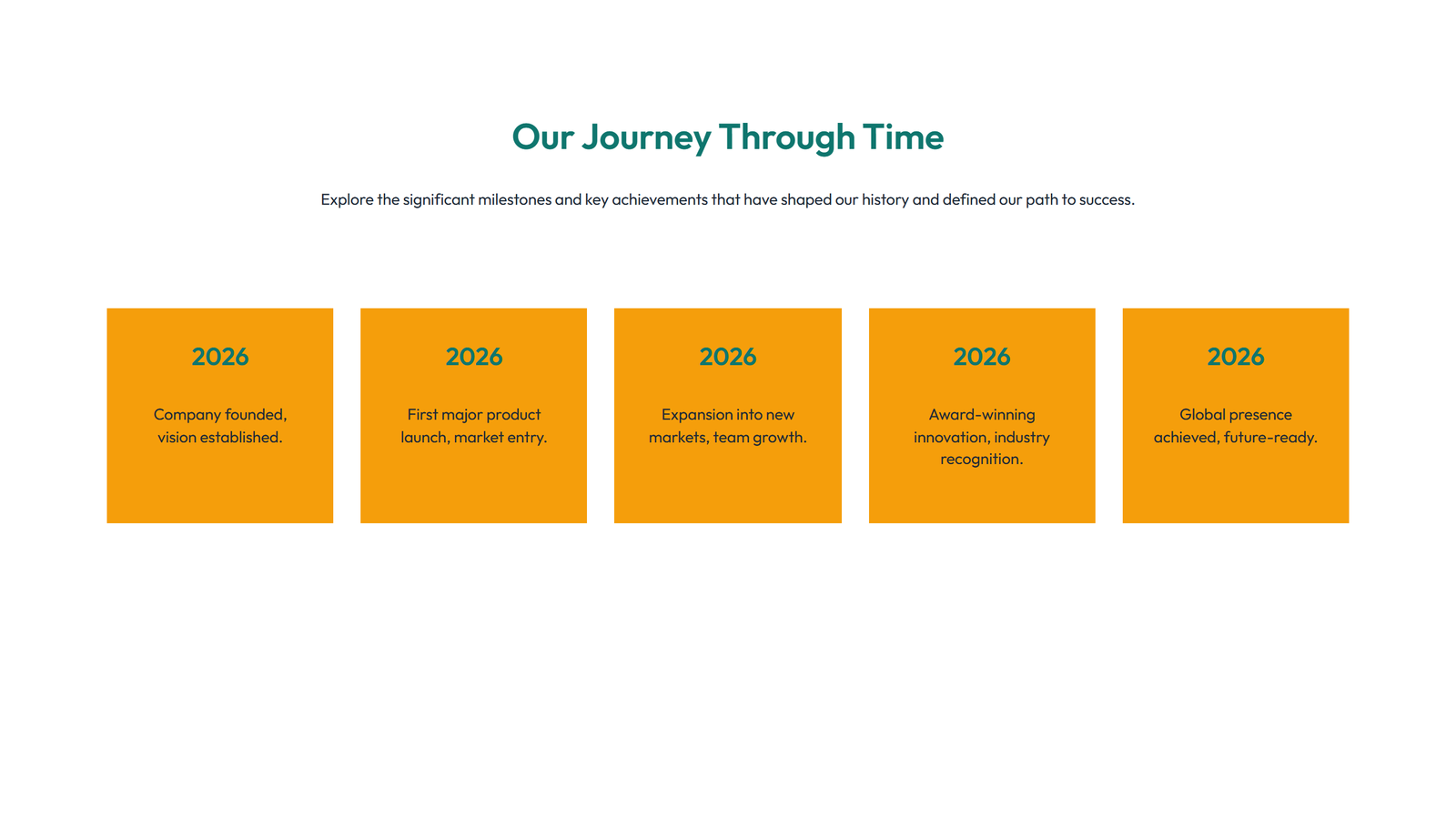
horizontal timeline: 5 milestones with background container card
Timeline Layout Style 4 28
decade-style entries stacked with social-icons row
Timeline Layout Style 2 16
3 era cards side by side with image placeholder