📌 Version 1.0 This is the first generation of our components. Some may have minor alignment differences or use widgets that aren't perfectly matched to the content type. Even so, they provide a strong structural foundation and are very useful for quickly building any type of website. We're continuously improving them; future versions will be even more polished.

Why does this look plain/unstyled? Snapelement components are intentionally unstyled. They contain no hardcoded colors, fonts, or spacing. When you paste them into Elementor, they automatically adopt your site's Global Styles (colors, fonts, buttons). The preview may look off or basic here, but once imported, every element matches your brand.
Layout
3-col 5-features h-only badge text tight
About This Component
Well-designed pricing sections balance transparency with persuasion, guiding users toward the optimal plan. This Snapelement pricing section component is crafted for WordPress users who want a professional Elementor layout without starting from scratch. The design features 5 feature highlights per plan, a 3-column grid structure, and a badge element for labels or announcements. This template is built using E Div Block, E Flexbox, Heading, E Paragraph, and E Divider widgets, leveraging Elementor 4.0 atomic elements for a lighter DOM and faster page loads. Ideal for software licensing pages, SaaS pricing pages, and subscription service sites. Simply copy the JSON, paste it into Elementor, and customize it with your brand colors and content. This pricing section follows e-commerce best practices by presenting costs transparently alongside feature lists that justify the investment. Built with Elementor 4.0 atomic elements, this component delivers a lighter DOM structure that contributes to faster page load times and better Core Web Vitals scores. This template strikes the right balance between visual complexity and page load efficiency.
How to use
- 1.Click “Copy JSON” above (or download the file)
- 2.Open your page in Elementor editor
- 3.Right-click on the canvas → Paste
- 4.The component appears with your site's Global Styles applied automatically
Centered Pricing with Badge, Heading Only, and 3-column Layout 9
This component is built with Elementor 4.0 atomic elements. Clean and lightweight structure.
Widgets used
Unlock Pro widgets with Elementor Pro
Get access to forms, sliders, testimonial carousels, and 20+ premium widgets
Get Elementor Pro →Launch Your Website: Get 20% Off Hostinger!
Ready to build your dream site? Get fast, reliable, and affordable web hosting with Hostinger. Use my exclusive link to score an extra 20% off your plan today!
Get 20% Off →Get premium cloud hosting, enterprise-grade security, and 24/7 support at your fingertips.
Ideal for agencies, freelancers, and businesses building professional WordPress sites.
Get Cloud hosting for WordPress →Related Pricing Sections
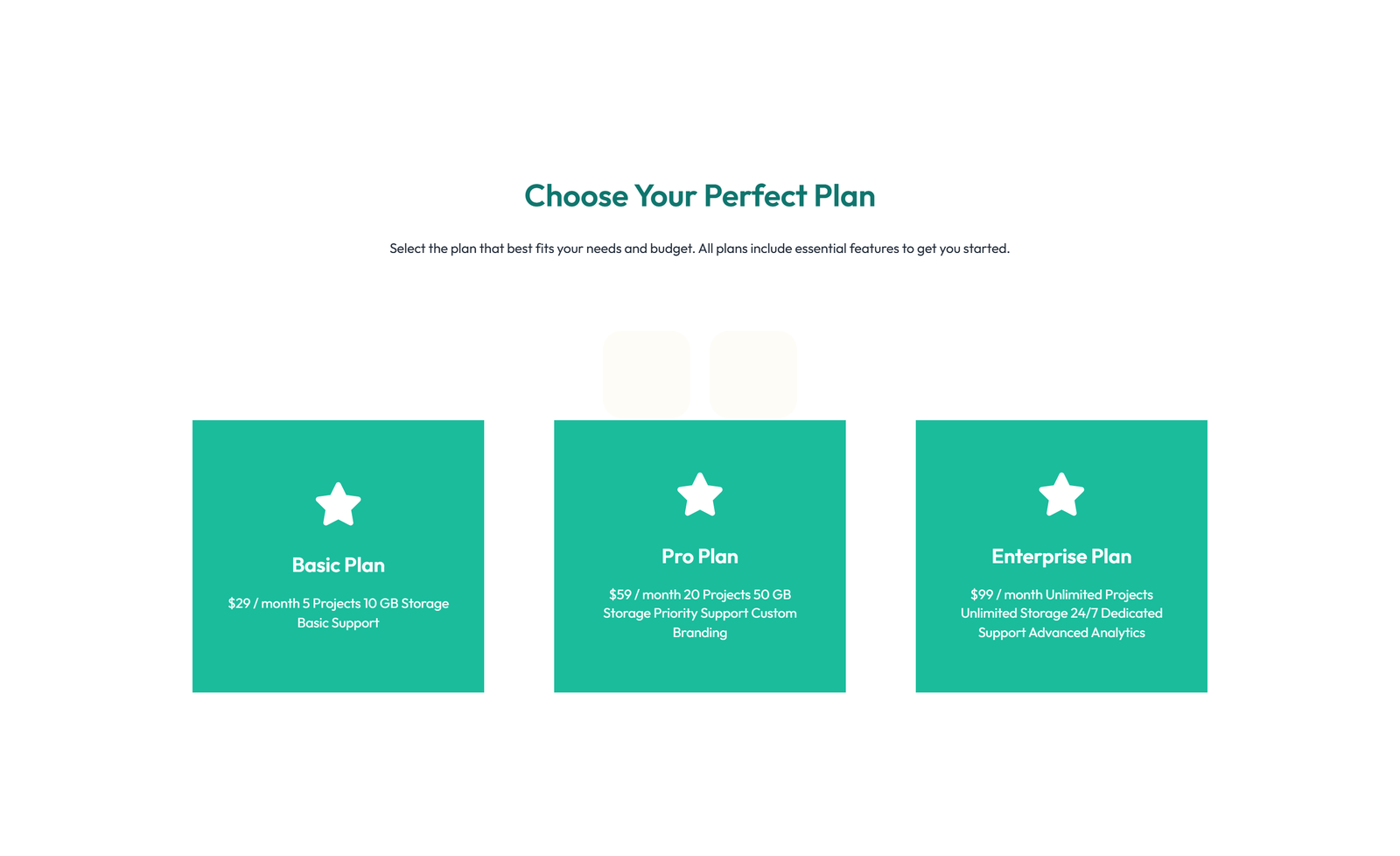
Pricing with 3-column Price Table with Ribbon 47
section heading + subtitle: price-list widget (Pro) menu style
 Elementor ProV3 Adaptive
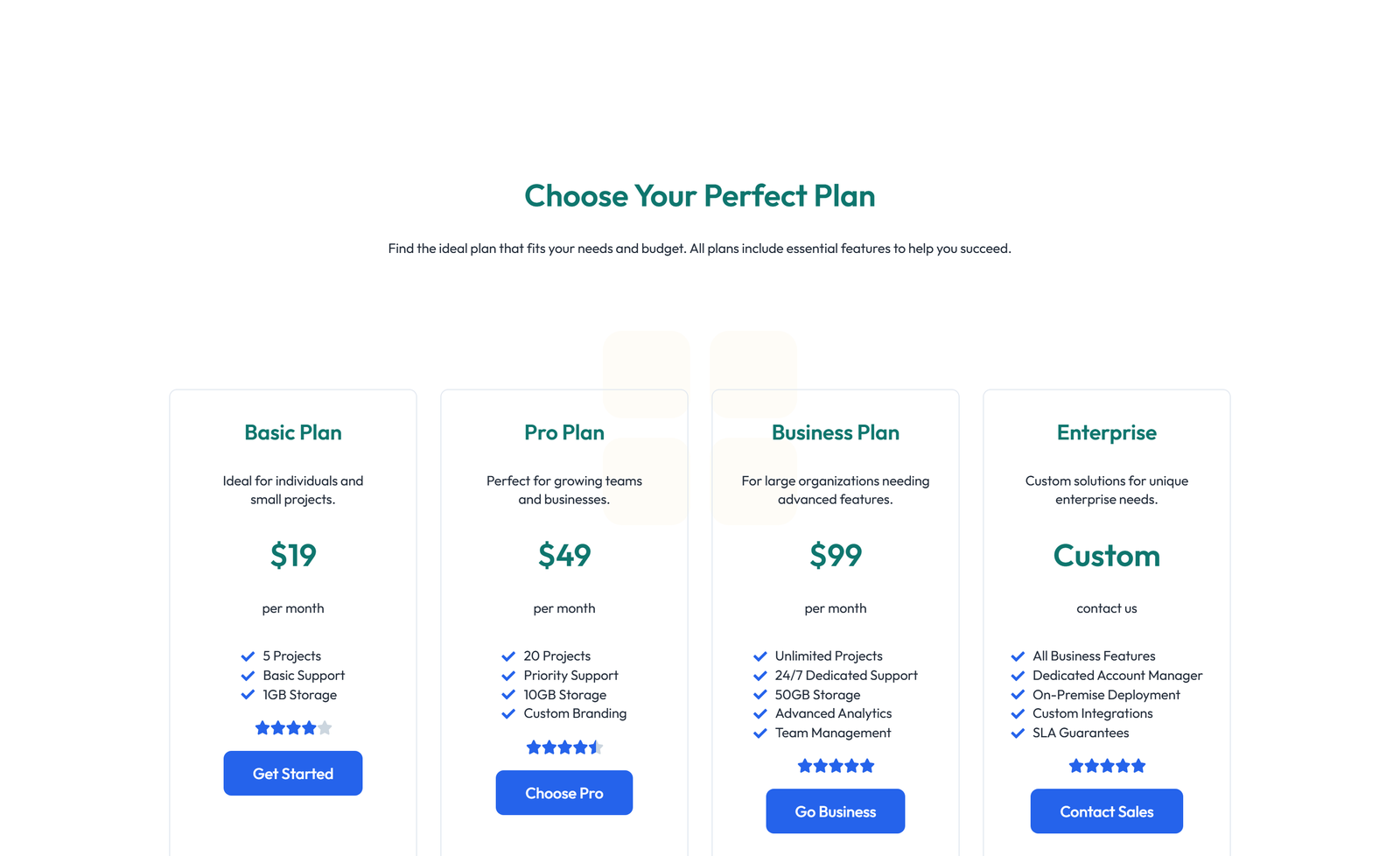
Pricing with 2-column Price Table Comparison 37
section heading + subtitle: 3 pricing tiers with badge text on recommended tier
 Elementor ProV3 Adaptive
Pricing with 3-column Price Table Comparison 17
section heading + subtitle: 4 compact pricing columns
Pricing with 3-column Price Table with Ribbon 48
section heading + subtitle: price-list widget (Pro) menu style
Centered Pricing with Badge, Heading Only, and 2-column Layout 13
2-col 4-features h-only badge no-footer normal
 Elementor ProV3 Adaptive
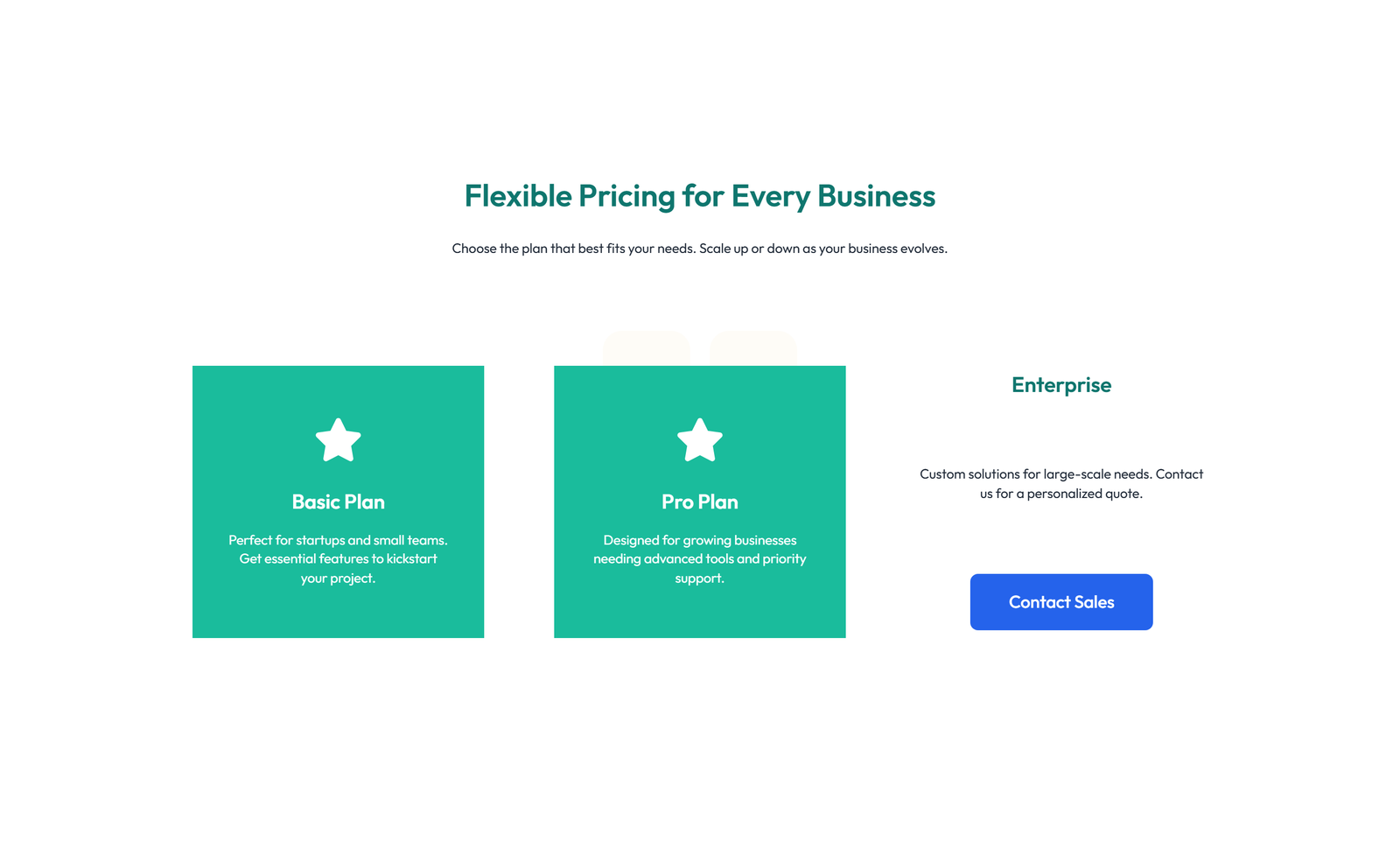
Pricing with 3-column Price Table Comparison 94
section heading + subtitle: 2 plans + enterprise custom card